How to activate an AT&T Business phone, tablet, hotspot, or watch
This guide is for AT&T Business wireless accounts. Personal AT&T customers should use AT&T consumer support. Business phones and tablets can usually be activated by calling the automated activation number or using AT&T’s online activation page. Watches and certain specialized devices follow different setup steps.
1. What do I need before activating an AT&T Business device?
- The wireless number being activated. For an upgrade or port, use the existing wireless number. For a new line, check the order confirmation, packing information, or ask the person who placed the business order.
- The billing ZIP or shipping ZIP associated with the account or order.
- The new device charged, powered on, and ready for setup.
- A reliable Wi-Fi connection for devices using eSIM or completing software setup.
- If your employer or IT department ordered the device, check whether it uses mobile device management or automated enrollment before beginning setup.
2. Upgrading? Transfer your information before activating
Activating the new device may move cellular service away from the old device. If this is an upgrade, transfer important information before completing activation whenever possible.
- Transfer contacts, photos, messages, applications, and other important data.
- Move or reconfigure authentication apps used for business logins and multifactor authentication.
- Make sure you know the passwords for your Apple Account, Google account, email, and other critical services.
- Review the Smartphone Content Transfer Guide for additional transfer options.
3. How do I activate a new AT&T Business phone or tablet?
866.895.1099
You can also activate online at att.com/activations.
- If the device uses eSIM, connect it to Wi-Fi. If it uses a physical SIM, make sure the correct AT&T SIM is installed.
- Activate the device by calling 866.895.1099 or by going to att.com/activations.
- Follow the automated or online prompts for the wireless number and any additional information requested.
- On iPhones: follow the on-screen setup prompts and, when presented, complete the AT&T eSIM download.
- On Android phones, tablets, hotspots, and other eSIM devices: follow the device prompts and any instructions included with the AT&T order. If the order includes an eSIM QR code or other device-specific instructions, follow those instructions.
- Restart the device after activation if prompted or if service does not appear immediately.
- Test calling, texting, and cellular data. For tablets and hotspots, test the cellular-data connection.
4. What if I am transferring my number to AT&T?
- Do not cancel service with your old provider. The existing service should remain active while the number transfer is being completed.
- Make sure AT&T has the correct account number, transfer PIN or passcode, and account information from the old provider.
- Activate the new AT&T phone by calling 866.895.1099 or using att.com/activations.
- Once the transfer completes, the old phone may lose service. That is normal because the number has moved to AT&T.
- Restart the new AT&T device and test calling, texting, and cellular data.
AT&T says number transfers can take anywhere from a few minutes to as long as 5 business days, depending on the provider and transfer process.
5. How do I activate an Apple Watch on AT&T?
An Apple Watch does not use the same activation steps as a phone. Cellular setup is completed from the Watch app on the paired iPhone.
- Make sure the iPhone and Apple Watch are paired and near each other.
- Open the Watch app on the iPhone.
- Select Cellular.
- Select Set Up Cellular.
- Follow the AT&T prompts to activate cellular service and NumberSync.
See the full guide: How to Add or Remove AT&T NumberSync for Apple Watch.
6. What if the business uses MDM or automated device enrollment?
Company-owned devices may automatically enroll in Apple Business Manager, Android zero-touch, Samsung Knox Mobile Enrollment, or an MDM/UEM platform during setup.
Do not skip or bypass a management or enrollment screen unless your company’s IT administrator tells you to. The enrollment may be required for company applications, security policies, email, VPN access, or other business services.
Learn more: AT&T Mobile Device Management & Automated Enrollment.
7. Before erasing or trading in the old phone
- Confirm your photos, contacts, messages, applications, and other important information transferred successfully.
- Confirm business authentication apps and multifactor authentication work on the new device.
- Place and receive a test call.
- Send and receive a test text message.
- Turn off Wi-Fi and confirm cellular data works.
- Sign out of your Apple or Google account as appropriate and disable security or activation locks, including Find My, before trading in the device.
- Erase or factory-reset the old phone only after everything above is confirmed.
- Review the trade-in instructions and deadline included with the order. AT&T commonly requires promotional trade-ins to be completed within 30 days.
8. What should I do if AT&T Business activation does not work?
Activation is not completing
- Confirm you are activating the correct wireless number and device.
- Confirm the billing or shipping ZIP associated with the order.
- Keep an eSIM device connected to Wi-Fi.
- Restart the device and test again after AT&T confirms activation.
The eSIM does not download
- Keep the device connected to Wi-Fi.
- Follow the setup prompts for that specific device.
- Check the order paperwork for eSIM or QR-code instructions.
- If activation still fails, contact AT&T Business Wireless Support.
A physical-SIM device has no service
- Power the device off.
- Confirm the correct AT&T SIM is installed properly.
- Power the device back on.
- Test calling, texting, and cellular data again.
AT&T Business Wireless Support: 800.331.0500
AT&T Port Activations Center: 888.898.7685
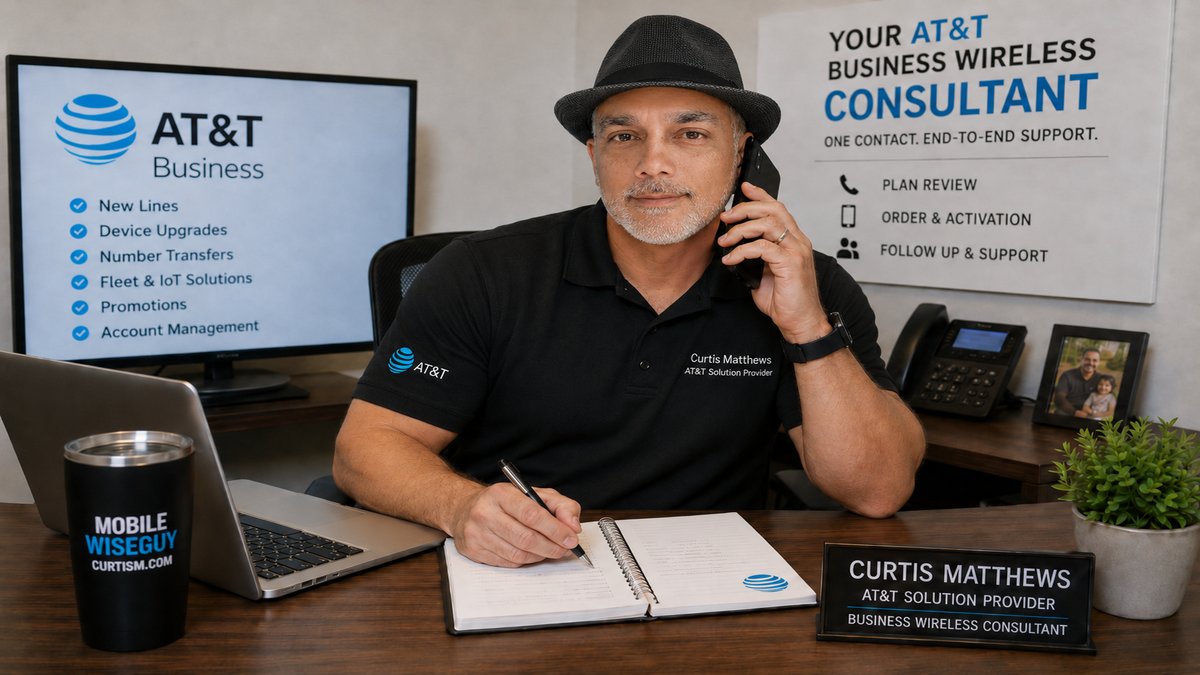
Was your AT&T Business order placed through Curtis?
If Curtis Matthews assisted with your business order and there is an order-related problem—such as an incorrect device, missing shipment, wrong plan, upgrade issue, or other order discrepancy—send the order details through the contact page.
For routine technical activation problems, use the AT&T Business support resources listed above. WirelessConsultant.net does not provide support for personal AT&T accounts.