AT&T Business Transfer PIN: How to Get a Port Out PIN
AT&T may call this a Number Transfer PIN, Transfer PIN, Port Out PIN, or Port PIN. It is used when moving an AT&T wireless number to another carrier.
Quick answer
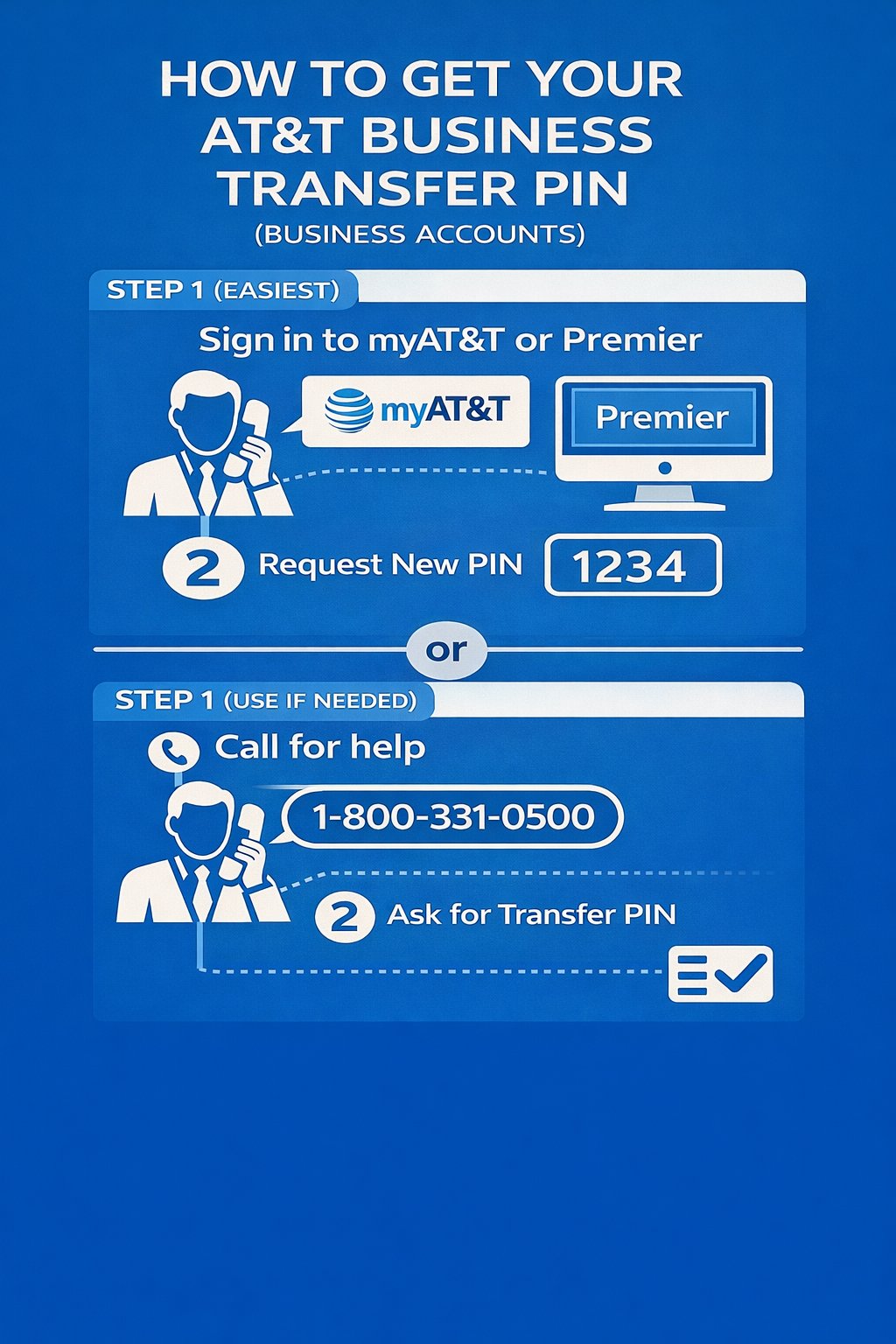
For most AT&T Business Wireless accounts, the fastest way to request a Number Transfer PIN is online through the myAT&T account.
- The primary user on the business account should sign in online.
- Go to the profile or account settings area.
- Look for Transfer phone number or Request new PIN.
- If the online option is not showing, call 800.331.0500, ask for tech support, and then ask for a Number Transfer PIN or Port Out PIN.
Get the Transfer PIN online through myAT&T
If the business account has the right online access, this is usually the cleanest way to get the Number Transfer PIN.
- Sign in to the AT&T account online.
- Go to the account profile or settings area.
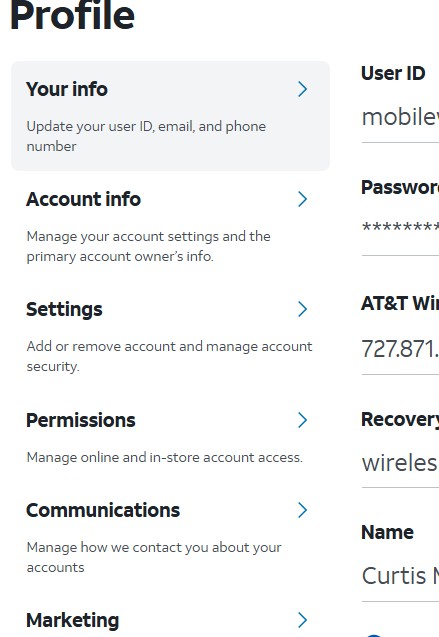
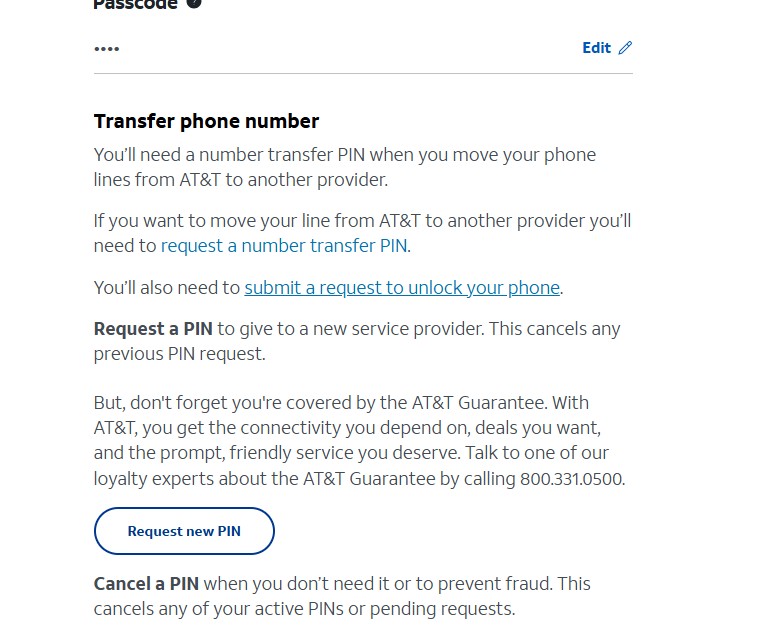
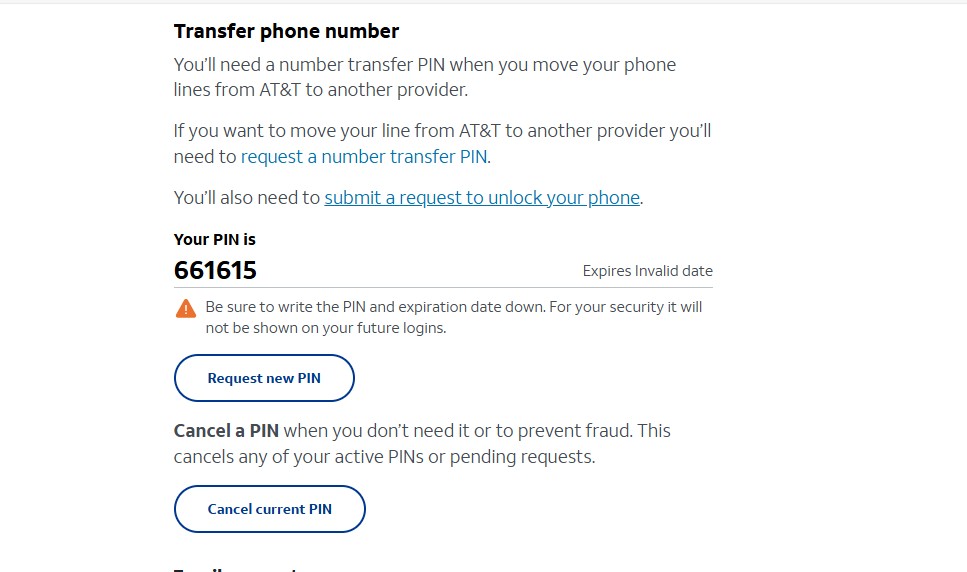
- Look for Transfer phone number.
- Select Request new PIN.
- The Number Transfer PIN should display on the screen.
- Give the PIN to the new carrier when submitting the transfer request.
Screenshot steps
These screenshots show the general online path for requesting a Number Transfer PIN. Your screen may look different depending on your business account type, online access, and permissions.

If online does not work, call AT&T Business Wireless Support
If the online option is missing, the wrong user is signed in, or the business account cannot create the PIN online, call AT&T Business Wireless Support.
- Call 800.331.0500.
- Ask for tech support.
- Once you reach tech support, ask for a Number Transfer PIN or Port Out PIN.
- Make sure the primary user or authorized account contact is making the request.
AT&T Premier Transfer PIN steps
Some AT&T business accounts can request a Port Out Transfer PIN through AT&T Premier. If your account has this option, use the Premier path.
- Go to your AT&T Premier account and sign in.
- From the Account Management menu, look for Port Out (Transfer) PIN.
- Enter the billing account number or wireless number and select Search.
- Select Create a PIN.
- Review the Port Out PIN and expiration date.
What if the Transfer PIN option is missing?
If you cannot find the Transfer PIN or Port Out PIN option, the issue is usually connected to account access, user role, account type, or account security settings.
- The wrong person may be signed in.
- The login may not have primary online access.
- The business account may need AT&T support to generate the PIN.
- Wireless Account Lock may be blocking number transfers.
- The Premier feature may not be enabled for your login.
- The account may need an authorized user or access update before the PIN can be requested.
Transfer PIN, account passcode, and billing transfers are different
A Number Transfer PIN is used when moving a wireless number from AT&T to another carrier. It is not always the same as the normal account passcode used for account verification.
Transfer of Billing Responsibility is also different. That moves a line from one AT&T account to another AT&T account. A Transfer PIN is for moving a number away from AT&T to another carrier.
Official AT&T Transfer PIN article
For the latest AT&T instructions, use the official AT&T support article: Get a PIN to transfer your wireless number.
Need new AT&T Business services?
Curtis Matthews does not replace AT&T support for port-out PIN requests. Use myAT&T online access or AT&T Business Wireless Support for the Transfer PIN process.
If your business is staying with AT&T, adding services, upgrading devices, opening new locations, or comparing current AT&T Business options, Curtis can help with new AT&T Business services.
Add business smartphones, tablets, hotspots, routers, and connected wireless devices.
Compare current AT&T Business upgrade offers, trade-in options, and equipment choices.
Check options for AT&T Business Fiber, wireless internet, and backup internet solutions.
Discuss AT&T Business options for IoT, mobility, cybersecurity, and connected business services.
AT&T Business Transfer PIN FAQ
What is an AT&T Business Transfer PIN?
An AT&T Business Transfer PIN, also called a Number Transfer PIN, Port Out PIN, or Port PIN, is the security PIN used when moving a business wireless number from AT&T to another carrier.
Who can request a Transfer PIN for an AT&T Business Wireless account?
AT&T says only the primary user on a business account can request a Number Transfer PIN. If the wrong person is signed in or the login does not have the right access, the Transfer PIN option may not show.
What is the fastest way to get the Transfer PIN?
Online through myAT&T is usually the fastest option when the primary user has the right online access. If the online option is not showing, call AT&T Business Wireless Support at 800.331.0500, ask for tech support, and then ask for a Number Transfer PIN or Port Out PIN.
Can Business Wireless customers use the AT&T app or *PORT to create a Transfer PIN?
AT&T says Business Wireless accounts cannot use the AT&T app or the mobile-device shortcut to create a Number Transfer PIN. Use online access or contact AT&T support.
How long does an AT&T Business Number Transfer PIN last?
AT&T says business Number Transfer PINs expire 14 days after they are requested. Request the PIN close to the time you are ready to submit the transfer to the new carrier.
Should I cancel AT&T service before transferring my number?
No. Keep the AT&T line active until the number transfer is complete. If the line is canceled too early, the transfer can fail.
Adding or upgrading AT&T Business services?
Curtis Matthews helps businesses with AT&T Business wireless lines, device upgrades, tablets, hotspots, business internet, fiber, IoT, cybersecurity, and connected business solutions.
Contact Curtis for New AT&T Business ServicesAT&T Business wireless help nationwide. Devices are shipped only. No in-store pickup.