How to activate an AT&T business phone, tablet, watch, or hotspot
Use this page to activate AT&T business devices, including iPhones, Android phones, tablets, watches, and hotspots. The main activation method is the same for most devices. iPhone eSIM setup just needs a little extra attention, so that is called out below.
Fast answer
- Power on the device.
- If it is an iPhone or another eSIM device, connect it to Wi-Fi.
- Activate the line online at att.com/activations/activatewireless or call 866-895-1099.
- Enter the wireless number and billing or shipping ZIP.
- Restart the device and test calling, texting, and data.
- Do not erase, reset, or trade in the old phone until everything works.
Wi-Fi is usually needed for iPhone and other eSIM downloads. It is not required for every physical SIM device.
What you need before you start
- The wireless number for the line you are activating
- The billing ZIP or shipping ZIP on the account
- The device powered on and ready
- Wi-Fi for iPhone or other eSIM devices
Best first move
Activation first. Device setup second.
How AT&T activation works for most devices
- Go to att.com/activations/activatewireless.
- Enter the wireless number and billing or shipping ZIP.
- Follow the prompts until you see confirmation.
- Restart the device once and test service.
Call 866-895-1099 and follow the prompts.
If you are activating multiple lines on the same account, double-check that you are selecting the correct number.
Activation steps by device type
Phone with a physical SIM
- Make sure the SIM is already in the phone.
- Activate the line online or call 866-895-1099.
- Restart the phone.
- Test call, text, and data.
Wi-Fi is usually not needed just to activate a phone that uses a physical SIM.
iPhone or other eSIM phone
This section is here because iPhones are common and eSIM setup can confuse people. But this page is for all AT&T business devices, not just iPhones.
- Connect the iPhone to Wi-Fi.
- If you see Transfer Phone Number, Transfer eSIM, or Transfer Cellular Plan, tap Not Now, Set Up Later, or Skip.
- Activate the line online or call 866-895-1099.
- Watch for Cellular Plan Ready to be Installed and tap to install it.
- Test call + text + data.
- Do not erase or wipe the old phone until everything works.
Go to Settings → Cellular → Add eSIM and follow the prompts shown on the phone. Wording can vary by device and iOS version.
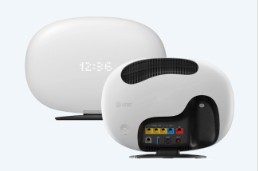
Hotspot or wireless internet device
- Power on the hotspot.
- Activate the line online or call 866-895-1099.
- Restart the hotspot once.
- Confirm it shows service, then connect your laptop or phone to the hotspot Wi-Fi name and password.
A hotspot gives Wi-Fi to your devices. It does not usually need to join Wi-Fi to activate.
Tablet, watch, or other connected device
- Use the same activation path: wireless number + billing or shipping ZIP.
- Restart the device after activation.
- For eSIM-capable devices, Wi-Fi may be needed to download the eSIM.
If the number is being ported from another carrier
- The new phone may power on before the number transfer is fully finished.
- Your old phone may still work for a while during the move.
- Do not wipe the old phone too soon.
- After activation, restart the new device and test voice, text, and data again.
If the activation page says “Not Activated”
- Make sure you are using the correct wireless number.
- Try both the billing ZIP and shipping ZIP.
- Restart the device.
- If it uses a physical SIM, reseat the SIM if possible.
- If it is an iPhone or eSIM device, go to Settings → Cellular → Add eSIM.
- Test again after a few minutes.
Common mistakes that slow activation down
- Trying to move the old phone’s plan before activating the new line
- Using the wrong wireless number
- Using the wrong ZIP code
- Resetting or trading in the old phone before testing everything
- Assuming Wi-Fi is required for every device
Frequently asked questions
Do I need Wi-Fi to activate an AT&T business device?
Not every device. iPhones and other eSIM setups usually need Wi-Fi to download the eSIM. Devices with a physical SIM often do not need Wi-Fi just to activate service.
What do I need for online activation?
You need the wireless number for the line you are activating and the billing ZIP or shipping ZIP on the account.
What should I do if my iPhone tries to transfer the old cellular plan during setup?
Tap Not Now, Set Up Later, or Skip. Activate the new AT&T line first. Then install the cellular plan when the phone prompts you.
What should I do if the activation page says “Not Activated”?
Double-check the wireless number, try both ZIP codes, restart the device, and for iPhone eSIM go back to Settings → Cellular → Add eSIM.
Can I erase my old phone right away?
No. Wait until the new device can place calls, send texts, and use data correctly.
I help AT&T business customers with upgrades, new lines, device orders, and account help. Devices are shipped. No pickup.